6.1 Scripts
Open it up by clicking the File menu, selecting New File, then R script, or using the keyboard shortcut Cmd/Ctrl + Shift + N
6.1.1 Running code
The key to using the script editor effectively is to memorize one of the most important keyboard shortcuts: Cmd/Ctrl + Enter. This executes the current R expression in the console.
Instead of running your code expression-by-expression, you can also execute the complete script in one step with Cmd/Ctrl + Shift + S. Doing this regularly is a great way to ensure that you’ve captured all the important parts of your code in the script.
We recommend you always start your script with the packages you need. That way, if you share your code with others, they can easily see which packages they need to install. Note, however, that you should never include install.packages() in a script you share. It’s inconsiderate to hand off a script that will change something on their computer if they’re not being careful!
6.1.3 Saving and naming
Three important principles for file naming are as follows:
- File names should be machine readable: avoid spaces, symbols, and special characters. Don’t rely on case sensitivity to distinguish files.
- File names should be human readable: use file names to describe what’s in the file.
- File names should play well with default ordering: start file names with numbers so that alphabetical sorting puts them in the order they get used. For example, suppose you have the following files in a project folder.
alternative model.R
code for exploratory analysis.r
finalreport.qmd
FinalReport.qmd
fig 1.png
Figure_02.png
model_first_try.R
run-first.r
temp.txt
Here’s a better way of naming and organizing the same set of files:
01-load-data.R
02-exploratory-analysis.R
03-model-approach-1.R
04-model-approach-2.R
fig-01.png
fig-02.png
report-2022-03-20.qmd
report-2022-04-02.qmd
report-draft-notes.txt
6.2 Projects
6.2.1 What is the source of truth?
To make it easier to work on larger projects or collaborate with others, your source of truth should be the R scripts. With your R scripts (and your data files), you can recreate the environment. With only your environment, it’s much harder to recreate your R scripts: you’ll either have to retype a lot of code from memory (inevitably making mistakes along the way) or you’ll have to carefully mine your R history.
To help keep your R scripts as the source of truth for your analysis, we highly recommend that you instruct RStudio not to preserve your workspace between sessions. You can do this either by running usethis::use_blank_slate()or by mimicking the options shown in
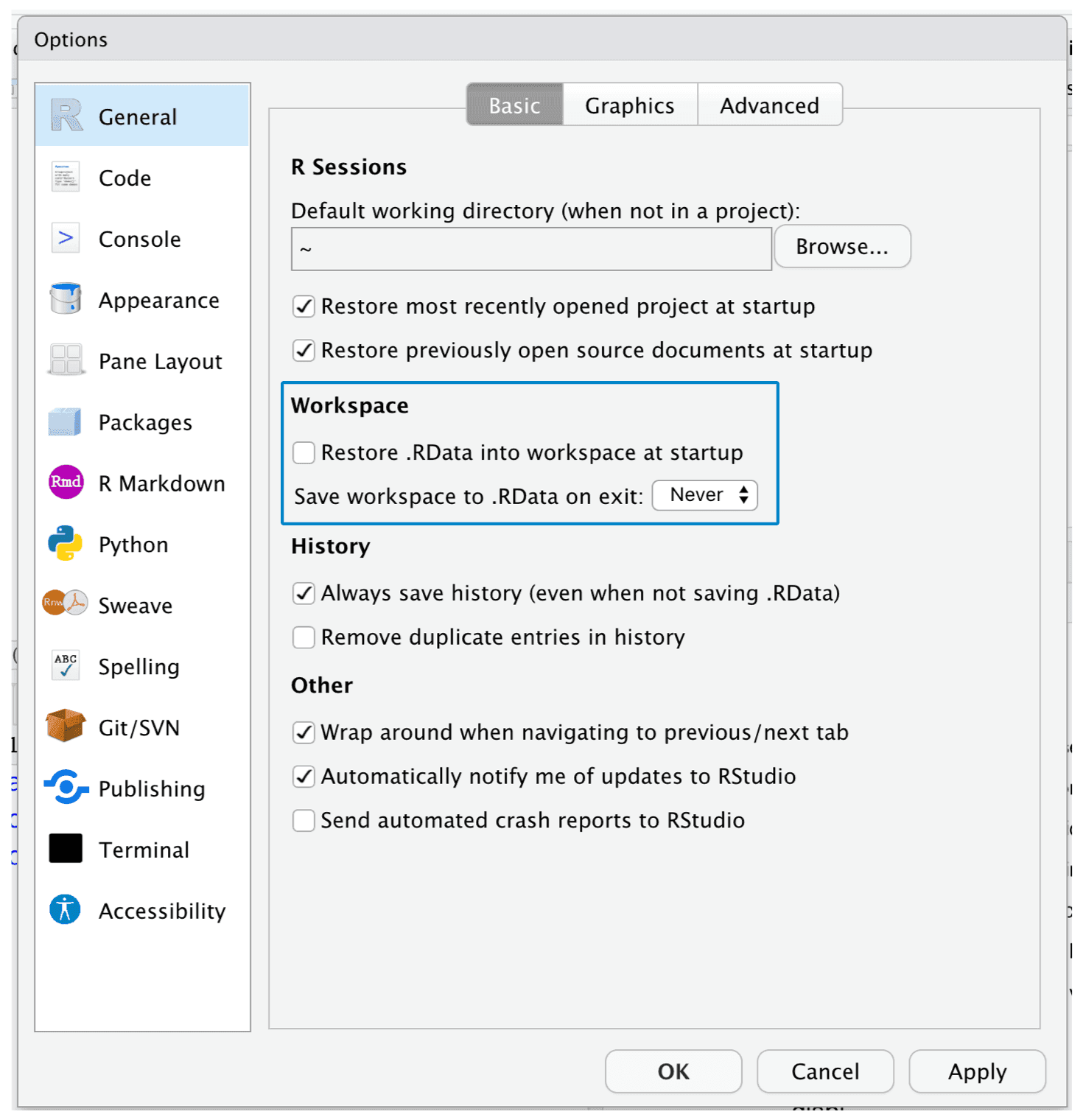 This will cause you some short-term pain, because now when you restart RStudio, it will no longer remember the code that you ran last time nor will the objects you created or the datasets you read be available to use. But this short-term pain saves you long-term agony because it forces you to capture all important procedures in your code. There’s nothing worse than discovering three months after the fact that you’ve only stored the results of an important calculation in your environment, not the calculation itself in your code.
There is a great pair of keyboard shortcuts that will work together to make sure you’ve captured the important parts of your code in the editor:
- Press Cmd/Ctrl + Shift + 0/F10 to restart R.
- Press Cmd/Ctrl + Shift + S to re-run the current script.
We collectively use this pattern hundreds of times a week.
6.2.2 Where does your analysis live?
As a beginning R user, it’s OK to let your working directory be your home directory, documents directory, or any other weird directory on your computer. But you’re more than a handful of chapters into this book, and you’re no longer a beginner. Very soon now you should evolve to organizing your projects into directories and, when working on a project, set R’s working directory to the associated directory.
6.2.3 RStudio projects
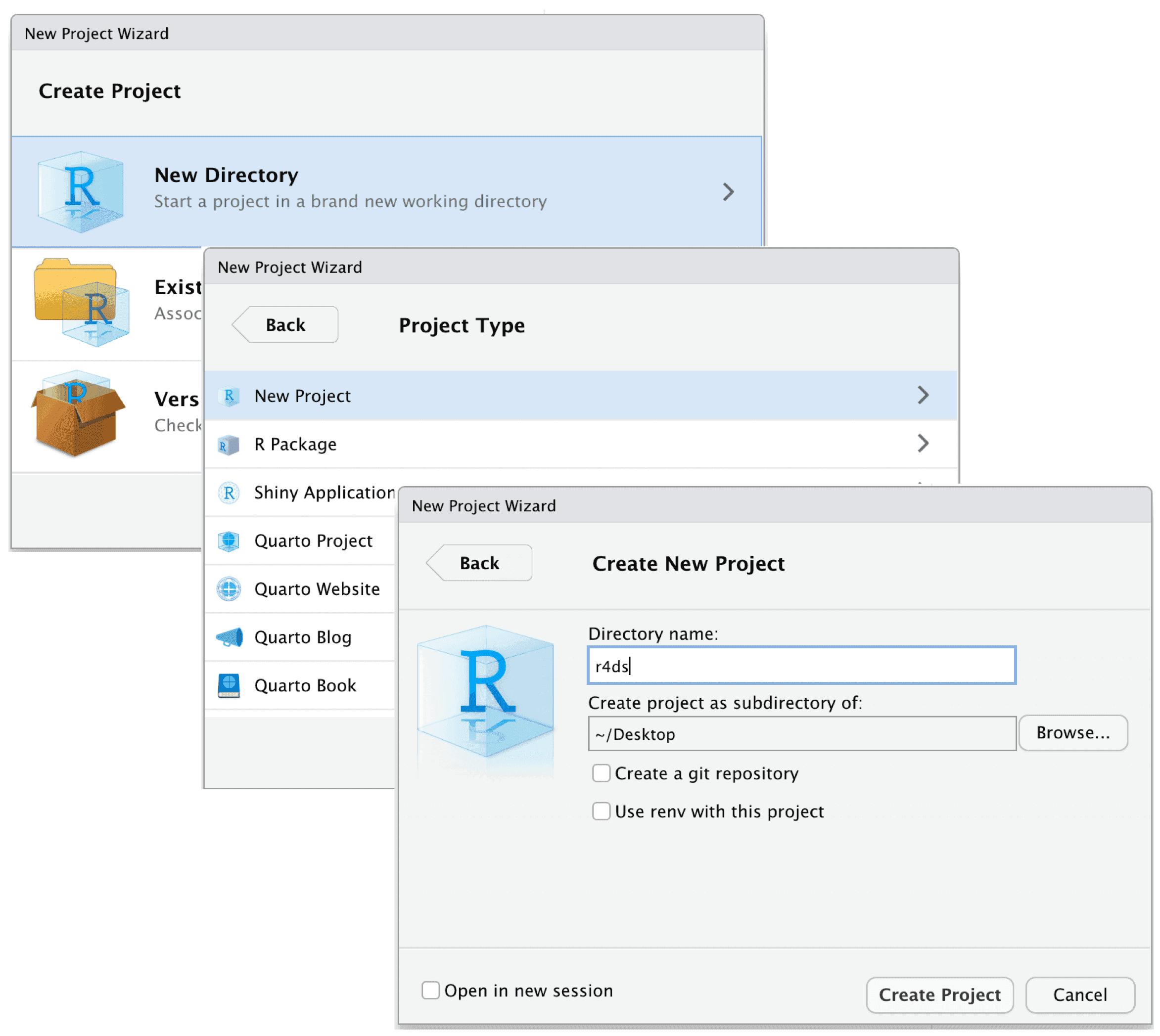
Keeping all the files associated with a given project (input data, R scripts, analytical results, and figures) together in one directory is such a wise and common practice that RStudio has built-in support for this via projects.
6.4 Summary
In summary, scripts and projects give you a solid workflow that will serve you well in the future:
- Create one RStudio project for each data analysis project.
- Save your scripts (with informative names) in the project, edit them, run them in bits or as a whole. Restart R frequently to make sure you’ve captured everything in your scripts.
- Only ever use relative paths, not absolute paths.
Then everything you need is in one place and cleanly separated from all the other projects that you are working on.